

Microsoft testing Remote Lock for lost or stolen Windows devices
Sergiu Gatlan
- November 17, 2026
- 06:19 AM
- 0
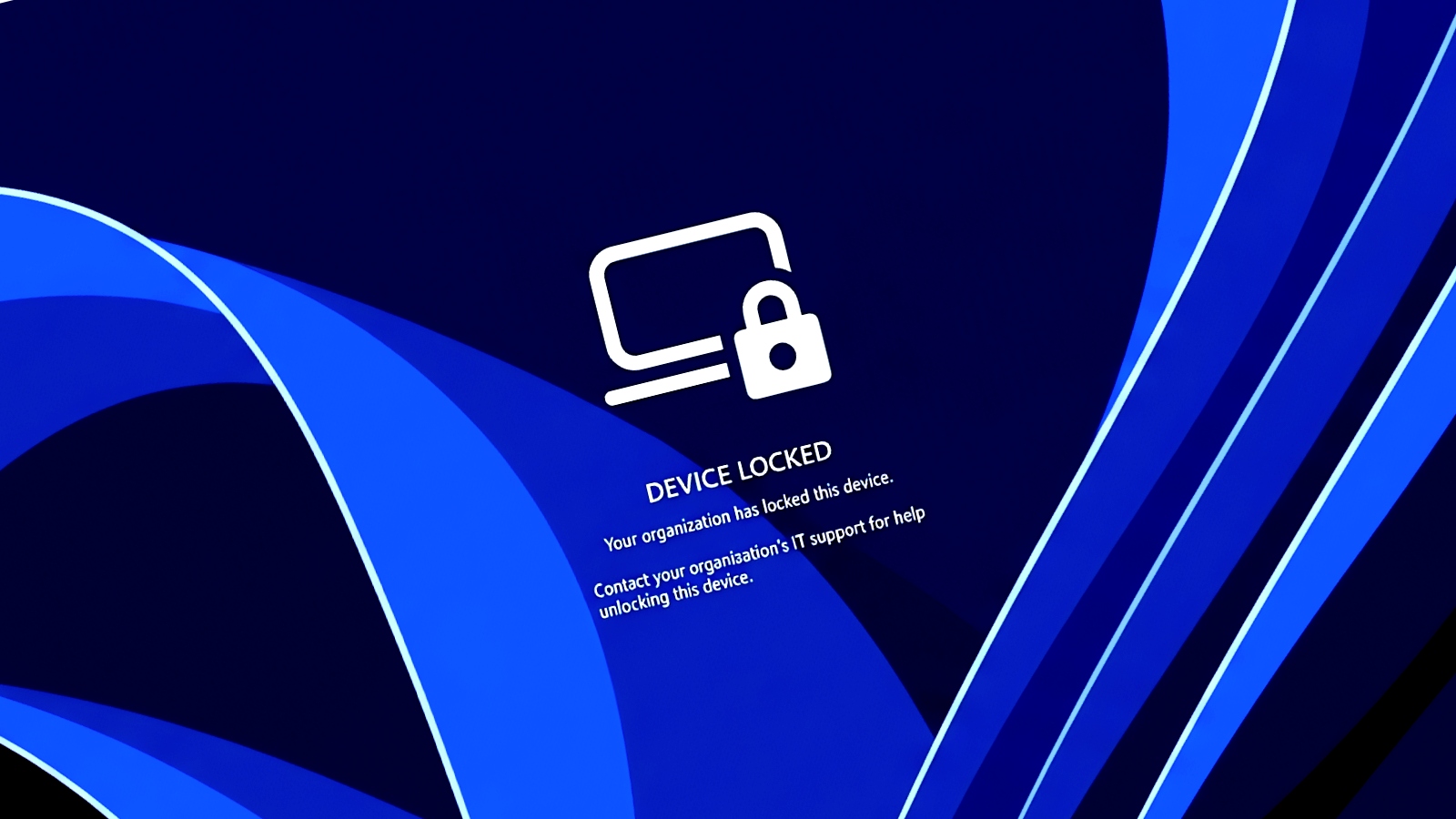
Microsoft is testing a new feature that lets enterprise IT administrators remotely lock stolen or lost Windows devices without wiping them.
Named Remote Lock, this new feature is shipping to devices upgraded to Windows 11 Insider Preview builds in the Beta (Build 26320.10003) and Experimental (Build 26340.10013) channels.
Admins can use Microsoft Intune custom configuration profiles to lock Microsoft Entra-joined, hybrid-joined, or MDM-enrolled devices that run Windows Enterprise, Education, or Pro.

After the IT department remotely locks the device, the system can only be unlocked via Intune, since PINs, passwords, local admins, or web sign-ins will no longer work. Microsoft added that the user's credentials will remain valid and can still be used to sign into other devices that haven't been locked.
"Windows signs out every active session, hides all sign-in options and shows a locked screen," said Windows Insider communications lead Stephen Lines. "Nothing is erased: the device stays enrolled and managed, BitLocker stays on and user data stays in place. The lock holds across restarts and while offline, and only an admin can lift it remotely, so the user picks up where they left off."
Admins can lock a device from the Intune admin center using the following procedure:
- Go to Devices > Windows > Configuration > Create > New policy. Choose Windows 10 and later, then Templates > Custom.
- Name the profile (for example, Remote lock – ON) and add the settings below, with LockState = 1.
- Assign the profile to a device group reserved for locked devices. To lock a device, add it to that group; the lock applies at the device's next check-in.
- To unlock, create a second profile with LockState set to 0 and assign it to an unlock group. Move the device from the lock group to the unlock group.
After Remote Lock is enabled, the device is not isolated from the enterprise network or erased. To do that, admins must use the device isolation and wipe controls in Intune.
However, users must keep BitLocker enabled to protect their data if the device is reimaged or the drive is removed because the Windows Recovery Environment, Safe Mode, and booting from USB or other media are not blocked.
With these Windows 11 preview builds, Microsoft has also begun testing new advanced security key management features that let users view and manage passkeys stored on a FIDO2 (Fast Identity Online 2) security key individually.
These new features allow admins to configure enterprise settings such as always-required user verification, minimum PIN length, and enterprise attestation.
In August, Microsoft also announced new privacy controls that let Windows 11 users choose which desktop apps can access their microphone, camera, and precise location.

Uncover email threats your existing defenses may miss.
Adaptive Security's AI agents analyze email intent, context, and behavior to uncover phishing, business email compromise, and invoice fraud.
See what's getting through with a 14-day read-only scan of Microsoft 365 or Google Workspace, with no MX changes.
Related Articles:
Microsoft: Windows Server 2016 reaches end of support in 60 days
Microsoft pushes Windows emergency updates to fix activation failures
Microsoft confirms Windows activation failures after November updates
Microsoft says November security updates cause printing issues
Microsoft: Recent Windows updates cause SQL Server performance issues
- Intune
- Microsoft
- Remote Lock
- Windows
Sergiu Gatlan
- Previous Article
Post a Comment Community Rules
You need to login in order to post a comment
Not a member yet? Register Now















Deja una respuesta